Streamlabs: Live Streaming
- 3.4
- Rating
- 10.00M
- Installs
- Free
- Price

 Analysis by App-foxy
I approached Streamlabs: Live Streaming as a practical mobile broadcasting tool rather than simply another video editor. Its purpose becomes clear quickly: it lets you turn a phone camera or a mobile gaming session into a live broadcast aimed at services such as Twitch, YouTube, Facebook and other supported destinations. That makes it appealing when I want to go live without sitting at a desk, although the quality of the experience depends heavily on the network connection available at the moment.
Developed by Logitech Europe S.A., this free app sits in the video players and editors category. It is available to everyone by age rating, and its broad reach is reflected in more than ten million installs. The current version is 3.16.2, while the overall average sits at about 3.5 from roughly one hundred sixteen thousand ratings. Those figures suggest a useful but not universally smooth experience: plenty of people find value in it, yet the app also attracts users who expect desktop-level reliability from a phone.
How Streamlabs feels when the network is doing the work
I find the network is more than a background detail here: it shapes how confidently I can plan the whole broadcast. Before going live, I think about whether the connection is likely to stay consistent for the entire session, not just whether the phone currently shows a signal. That simple distinction helps me decide when to keep the stream short and when to save the idea for a more dependable setup.
You May Also Like

 Blood Strike: 2.5 Anniversary
Blood Strike’s Loadouts Turn Every Drop Into a Tactical Gamble
A close look at Blood Strike’s custom loadouts: how fast access to signature weapons reshapes its battle royale rhythm, rewards preparation, and narrows the gap between fights.

 Pandora - Music & Podcasts
Pandora’s Music Is Easy to Start, but Harder to Recover
Pandora’s strength is its low-effort path from a seed to a station. Its weak spot is how much confidence it asks you to place in connection, setup, and quiet recovery.

 8 Ball Pool
 Is Built on Rivalries, Rematches, and Routine
A close look at the rivalries, rematches, shared routines, and unanswered safety questions that turn a quick pool match into a persistent mobile community.

 Samsung Music
’s Quiet Strength Is Playing What You Already Own
Its reach comes less from spectacle than from dependable access to a personal library. That simplicity is both the app’s strongest retention engine and its ceiling.

 AccuWeather: Weather Radar
AccuWeather Review: A Quick, Clear Forecast for Everyday Decisions
For everyday plans, the best forecast is the one you can understand quickly. AccuWeather makes rain timing, radar, and local conditions easy to act on, with a few trade-offs.

 Hill Climb Racing
Why Hill Climb Racing Still Turns Crashes Into One More Run
A tiny car, a bumpy hill and one more upgrade: Hill Climb Racing keeps resurfacing because its simple chaos makes every near-miss feel personal.
More From Our News Desk



Going live is easy; staying live is the real test
The first thing I noticed is that the app’s appeal is tied to immediacy. A phone is already a camera, microphone and screen in one device, so the distance between an idea and a broadcast is much shorter than with a traditional computer setup. If I am at an event, outside with something interesting to show, or ready to share a mobile game, I do not need to move footage through a separate editor before reaching an audience.
That convenience should not be confused with independence from connectivity. Live video needs a steady path from the phone to the chosen platform. A connection that is technically available may still be unsuitable if it fluctuates, becomes congested or changes while I am moving between locations. In practice, the most frustrating moments are not usually caused by pressing the wrong button; they happen when the connection looks fine at first and then fails under the sustained demand of broadcasting.
This is why I recommend treating the app as a live transmission tool, not as a replacement for recording locally and editing later. If the moment is important and cannot be repeated, I would be cautious about relying on a live session alone. A live broadcast offers immediacy and interaction, but it also exposes every weakness in the route between the phone and the streaming service.
Camera broadcasts and mobile games need different preparation
For a camera stream, the main concern is often the environment. A quiet room with a stable connection can make the app feel straightforward, while a crowded public location introduces several variables at once: movement, background noise, changing signal quality and battery pressure. I find the app most convincing for short, purposeful broadcasts where I know what I want to show and can check the connection before starting.
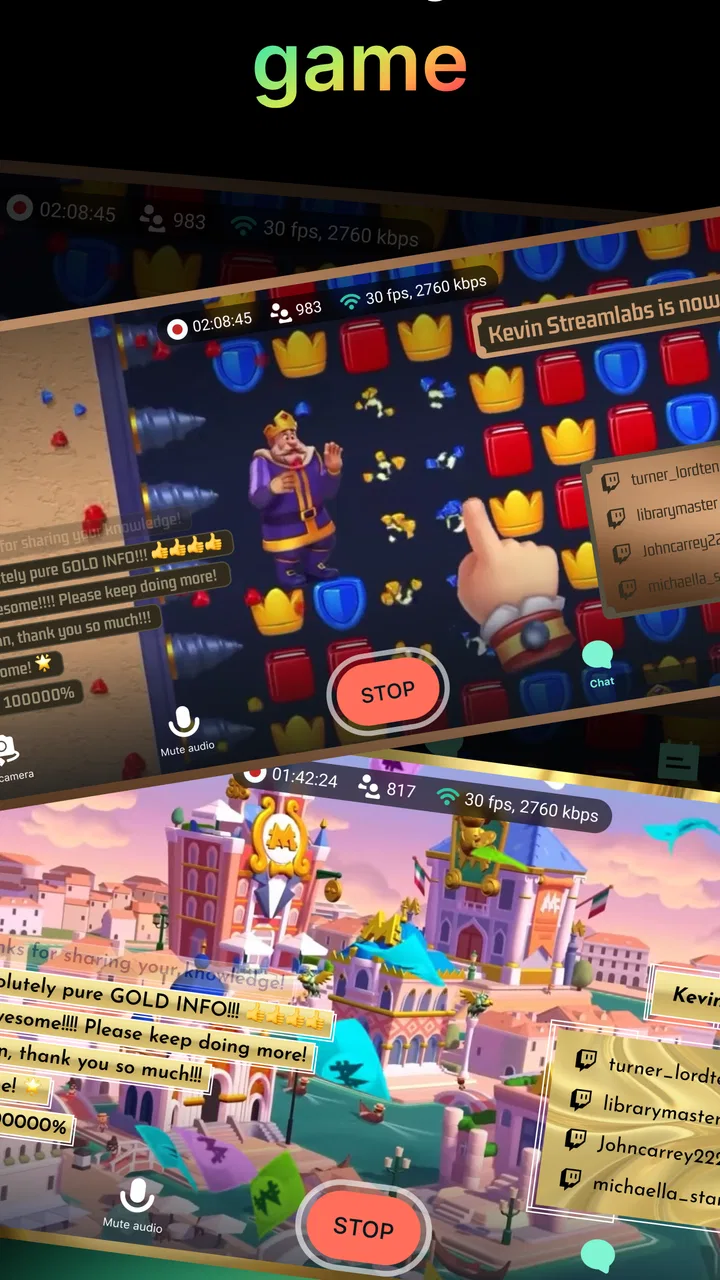
Game streaming adds another layer. The phone is already rendering the game, handling touch input and sending the broadcast, so the experience can feel more demanding than a simple camera session. A game may run acceptably by itself and then become less comfortable once streaming begins. That does not make the feature useless, but it means I would test the exact game and device combination before planning a long session.
A useful habit is to run a private or low-pressure test before announcing a broadcast. I can check whether the picture remains watchable, whether the audio is understandable and whether controls still feel responsive. This small step is more valuable than assuming that a strong signal indicator automatically guarantees a good stream.
Why a changing connection affects viewers as well as the broadcaster
When connectivity weakens, the impact is not limited to a loading screen. Viewers may see interruptions, delayed reactions or a stream that becomes difficult to follow. That delay matters if I am answering questions, demonstrating a game or reacting to an event in real time. A conversation can feel strangely disconnected when responses arrive after the moment has already moved on.
I also find that live broadcasting encourages a different style of content. With an edited video, I can remove pauses, fix a poor explanation or cut around a technical problem. With Streamlabs, I need a small plan for those moments. Explaining what I am doing, keeping a simple topic ready and avoiding a broadcast that depends on constant rapid interaction can make an unstable connection less damaging to the overall experience.
Using it away from a desk
When I take the app away from a desk, I treat the phone’s position and the surroundings as part of the production rather than afterthoughts. A steady place to rest the device can make a camera broadcast easier to watch, while stepping away from a noisy crowd can make speech clearer without adding equipment. Those small choices matter most when portability is the reason I chose mobile streaming in the first place.
The phone-first advantage
The biggest strength here is mobility. I can use the phone as the center of the setup instead of treating it as a remote control for a computer. That is valuable for creators who want to share something while it is happening, especially when carrying a laptop, capture hardware or a full microphone arrangement would defeat the purpose.
For a casual outdoor report, a quick community update or a spontaneous look at an interesting place, the app can remove a lot of preparation. I can frame the shot, choose a destination and begin working from the same device. That simplicity is more meaningful to me than a long list of advanced controls because it changes when live video becomes practical.
There is a trade-off, however. A phone is easy to carry precisely because it has limited physical space and battery capacity. Holding it for a long session can be tiring, and the device may become warm while handling the camera, the broadcast and any on-screen activity. I would keep the phone supported whenever possible and avoid planning a demanding stream with a nearly empty battery.
A realistic everyday scenario
Imagine that I am attending a small local event and want to show a friend what is happening. I can use the camera, begin a short broadcast and speak directly to viewers instead of recording clips, transferring them and assembling a post later. If the connection is stable, this is exactly the kind of situation where the app feels more useful than a conventional editor.
Now imagine the same event in a busy indoor venue. The signal may become inconsistent, the audio may compete with the crowd and the phone may be awkward to hold. In that case, I would shorten the broadcast, move to a quieter position or record material for a later upload instead. The app does not remove the physical limitations of mobile broadcasting; it simply makes the attempt easier.
What mobile creators should check before pressing the button
I would prepare three things first: the intended destination, the phone’s remaining battery and the place where the device will sit. I would also close distractions that could interrupt the session and make sure the camera view is sensible before going live. These are ordinary preparations, but they prevent the common mistake of treating a mobile stream as something that requires no setup at all.
For gaming, I would spend a few minutes checking whether the controls remain comfortable while the broadcast is active. Touch controls can become harder to use when the screen is shared with streaming elements, and a phone that feels responsive in a menu may behave differently during an intense match. If the game is competitive, I would choose a shorter test rather than risking a serious session.
When a stream fails and how I handle recovery
If a stream falters, I avoid making several changes at once because that makes it harder to tell what helped. I check the connection and the phone’s responsiveness, then decide whether a brief pause, a better location or a clean ending is the least confusing option for viewers. For anything I cannot afford to lose, I keep a separate way to capture or communicate the essential point.
Connection problems are part of the workflow
A fair review of this app has to treat failure recovery as a central part of the experience. A live stream can be interrupted by a weak signal, a sudden change in network conditions or a device that is struggling with too many tasks. Even if the app makes starting simple, no mobile broadcasting tool can guarantee that the connection will remain healthy from beginning to end.
When something goes wrong, I prefer a calm sequence rather than repeatedly tapping controls. I check whether the phone still has a usable connection, whether the app remains responsive and whether the camera or game is still behaving normally. If the problem is clearly local, moving closer to a stronger connection or stopping another demanding activity may help. If the problem is on the service side, waiting briefly and communicating the interruption to viewers is more sensible than pretending everything is fine.
A short explanation can preserve trust. I would tell viewers that the connection is unstable, pause if appropriate and decide whether continuing is worthwhile. The important point is to avoid turning a minor technical issue into a long, confusing broadcast where nobody knows whether the stream is still active.
Why a backup plan matters
For an important announcement, demonstration or event, I would not make a live stream my only copy of the content. A separate recording, a few prepared images or a short written update can give me something to share if the broadcast fails. This is not a criticism unique to Streamlabs; it is a sensible response to the fragile nature of mobile connectivity.
The backup also changes how I use the app. Instead of forcing a long stream through poor conditions, I can capture the essential moment, end cleanly and publish a shorter update later. That approach is less exciting than a flawless live session, but it is more reliable when viewers need clear information rather than constant access.
Recovery is different for camera and game streams
With a camera broadcast, recovery may be as simple as changing position, improving the phone’s stability or reducing the length of the session. With a game stream, stopping and restarting can be more disruptive because the game state, match and audience interaction may not wait. I would therefore be more conservative before starting a gaming broadcast in a location where the connection is unpredictable.
This is one of the situations where a computer-based streaming setup may be the better choice. A wired connection and dedicated hardware can offer more control for regular, high-stakes broadcasts. Streamlabs on a phone is more attractive when convenience and movement matter more than maximum consistency.
Using mobile data without unpleasant surprises
I treat cellular streaming as a deliberate choice, especially when I am away from home or using a plan with limits. A focused broadcast gives me a clearer reason to spend data than leaving a stream running through long gaps, and it also makes the session easier for viewers to follow. Before relying on mobile data, I consider both the likely connection stability and whether I can end the stream promptly if conditions change.
Live video can consume attention and allowance
Because the app is designed for broadcasting, I would treat mobile data as a limited resource rather than assuming every connection is equally suitable. A long stream can place a sustained demand on a cellular plan, and the cost of that usage may be more important than the app itself, which is free to download and use at its basic price point.
I would begin with shorter sessions and check how my plan handles them before committing to a regular schedule. This is especially important when travelling, using a shared connection or relying on a plan with restrictions. The app may make it easy to start, but the network provider still determines how comfortable that decision is financially and technically.
Battery use deserves the same attention. Broadcasting while using the camera or playing a game keeps the phone busy for an extended period. A power bank can help in mobile situations, although adding one reduces some of the freedom that makes phone streaming attractive. I see this as a practical trade-off: portability is strongest when the session is brief and the environment is prepared.
Choosing the sensible moment to use cellular service
If I am near a dependable Wi-Fi connection, I would normally prefer it for a planned broadcast, while still checking that it can handle the activity comfortably. Cellular service is more useful when the location is the reason for streaming in the first place, such as a public event or outdoor update. In that case, I would keep the broadcast focused instead of leaving it running while nothing important is happening.
One non-obvious benefit of this approach is better audience experience. A shorter stream with a clear purpose is easier to follow and less likely to expose a gradual connection or battery problem. Saving the network for the moments that matter can be more effective than attempting an unnecessarily long broadcast.
Where the free model fits
The app is free, but it includes in-app purchases ranging from around one dollar to nearly one hundred ninety dollars per item. That range is worth noticing before I explore optional extras or build a workflow around features that may sit behind purchases. I would start with the basic experience and decide whether the app solves my problem before spending anything.
This pricing structure also makes Streamlabs less straightforward for someone who wants a completely predictable, no-cost tool. A casual user may never need to buy anything, while a committed creator may be tempted by several optional additions. My advice is to judge each purchase by a specific need, such as saving time or improving a repeated workflow, rather than assuming that paying automatically fixes network instability or mobile hardware limits.
How it compares with familiar alternatives
I choose between Streamlabs and familiar alternatives by asking whether the moment needs to be live. Recording first is usually better when I want to edit or protect a polished result; desktop software makes more sense for a regular, carefully controlled production. On the other hand, when I need to share a camera view or mobile game while it is happening, a phone-first workflow can be the more practical compromise.
Against recording first and uploading later
Recording a video and uploading it later remains the safer choice when quality, editing and reliability matter most. I can remove dead air, correct mistakes and choose the best connection for uploading. That method is better for tutorials, reviews and carefully planned demonstrations where viewers benefit from a polished result.
Streamlabs wins when the value lies in being present at the same time as the audience. A live question, a spontaneous camera update or an ongoing mobile game session can lose its meaning if I wait until later. The choice is therefore less about which tool is universally better and more about whether immediacy is worth accepting the risks of live transmission.
Against desktop streaming software
Desktop software is usually the stronger option for a regular creator who needs a stable workstation, multiple sources or careful control over a long broadcast. A computer can be easier to keep powered, position and monitor, especially when the stream is central to work or income. It also avoids asking one small device to manage every part of the experience.
The mobile app is more compelling for occasional creators and people who do not want a permanent setup. I can carry it to a location and start from there, which is a meaningful advantage that desktop tools cannot match without extra equipment. The trade-off is that the phone’s battery, heat, screen size and connection become part of the production setup.
Against platform-specific mobile apps
A platform’s own mobile app may feel more direct if I always broadcast to one destination and want the simplest possible route. Streamlabs becomes more interesting when I want a dedicated streaming workflow that can serve camera or gaming use cases across major destinations. I would choose based on where my audience already is and how much control I need, rather than installing several tools without a clear reason.
Who should use it and who should choose something else
I think Streamlabs is a good fit for mobile creators who value speed, portability and direct interaction. It suits someone who wants to test live video without assembling a computer setup, a gamer who wants to experiment with broadcasting from a phone, or a creator who occasionally needs to show something as it happens.
It is less suitable for anyone who expects a phone to deliver the same consistency as a dedicated production system. I would also hesitate to recommend it as the sole method for an important event, a long professional broadcast or a stream from a location with unreliable connectivity. In those cases, recording first or using a desktop setup may be the more responsible choice.
The age rating of Everyone makes the app broadly accessible, but accessibility does not remove the need for adult judgement around public broadcasting, audience interaction and mobile data use. I would encourage new users to understand where their broadcast is going, test privately and avoid sharing anything they would not want a live audience to see.
My connectivity verdict
After using it with connectivity in mind, I see Streamlabs as a convenient bridge between a phone and live video platforms, not as a magic solution to the difficult parts of streaming. Its strongest quality is reducing the distance between having an idea and sharing it live. Its weakest point is that the entire experience remains vulnerable to the connection, battery and performance limits of the phone.
The app’s average rating of about 3.5 reflects that mixed reality better than an unqualified recommendation would. It can be genuinely useful when the conditions are right, but the same simplicity that makes it approachable may lead beginners to underestimate preparation. I would check the network, keep broadcasts purposeful, protect the phone’s battery and maintain a backup for anything important.
For me, the final decision is simple: I would install it for spontaneous camera broadcasts, mobile gaming experiments and situations where being live matters more than producing a polished recording. I would choose a desktop workflow or a record-and-upload approach when consistency, editing and recovery matter more. The best reason to use Streamlabs is mobility, while the main condition for enjoying it is a connection I can trust.
FAQs for Streamlabs: Live Streaming
01What features does Streamlabs: Live Streaming offer for content creators?
Streamlabs: Live Streaming provides a comprehensive suite of tools for content creators, including customizable alerts, overlays, and widgets to enhance live streams. It also offers integrated chat management, donation tracking, and real-time analytics to help you interact with your audience and monitor stream performance effectively.
02Is Streamlabs: Live Streaming compatible with both Android and iOS devices?
Yes, Streamlabs: Live Streaming is available for both Android and iOS platforms. It ensures seamless performance across a wide range of devices, allowing users to stream on the go. Make sure your device meets the app’s requirements for optimal functionality and compatibility.
03How user-friendly is Streamlabs for beginners in live streaming?
Streamlabs: Live Streaming is designed with user-friendliness in mind, making it accessible for beginners. The app features an intuitive interface with easy-to-navigate menus and a setup wizard to guide new users through configuring their first stream. Additionally, numerous tutorials and community forums are available to assist with any questions.
04Does the app support integration with popular streaming platforms?
Yes, Streamlabs: Live Streaming supports integration with major streaming platforms such as Twitch, YouTube, and Facebook Live. This allows you to broadcast content directly to your preferred platform, ensuring a wider reach and more engagement with your audience. Connecting your accounts is straightforward, ensuring a hassle-free experience.
05Are there any costs associated with using Streamlabs: Live Streaming?
Streamlabs: Live Streaming is free to use with basic features. However, it offers a premium subscription called Streamlabs Prime, which provides additional features such as premium themes, enhanced customization options, and access to exclusive apps. Users can decide based on their streaming needs if the upgrade is necessary.
Pros
- User-friendly interface
- easy to navigate.
- Customizable overlays for unique streams.
- Supports multiple streaming platforms.
- Integrated chat for viewer interaction.
- Built-in donation support for monetization.
Cons
- Can be resource-heavy on older devices.
- Limited free features; premium needed.
- Occasional stability issues reported.
- Complex setup for complete beginners.
- Some features need stable internet.

Streamlabs: Live Streaming
Gallery